

Install Anydesk on ubuntu:
1. Using GUI Method-
STEP 1 - Open the official website of
AnyDeskusing the following link on any browser (Chrome for example).Anydesk Website Link - https://anydesk.com/en/downloads/linux
STEP 2 - Scroll down a little and you will see a
Debian / Ubuntu / Mint (64 Bit)link as highlighted in the image below. Click on the link to download the installation file.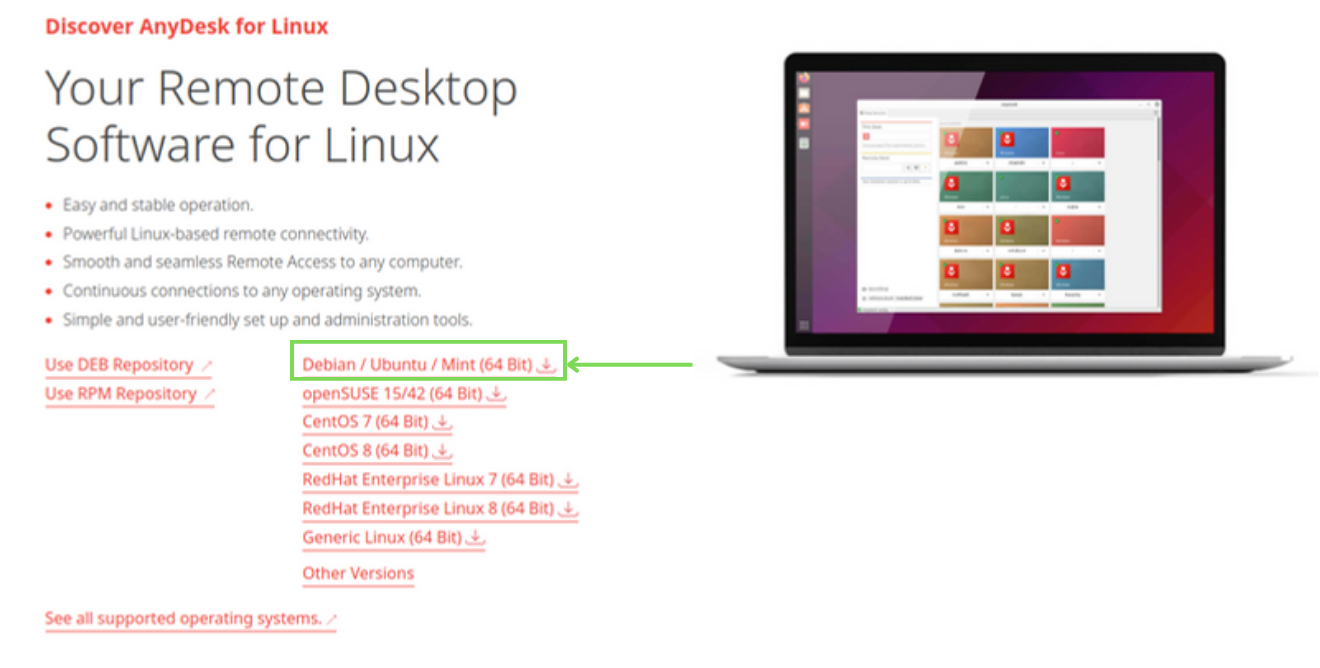
STEP 3 - Once the file is downloaded, right-click on the file and select
Open With Other Applicationand chooseSoftware InstallFor some who do not find
Software Installin select application by default, then go toView All Applicationsand there you can view the option forSoftware Install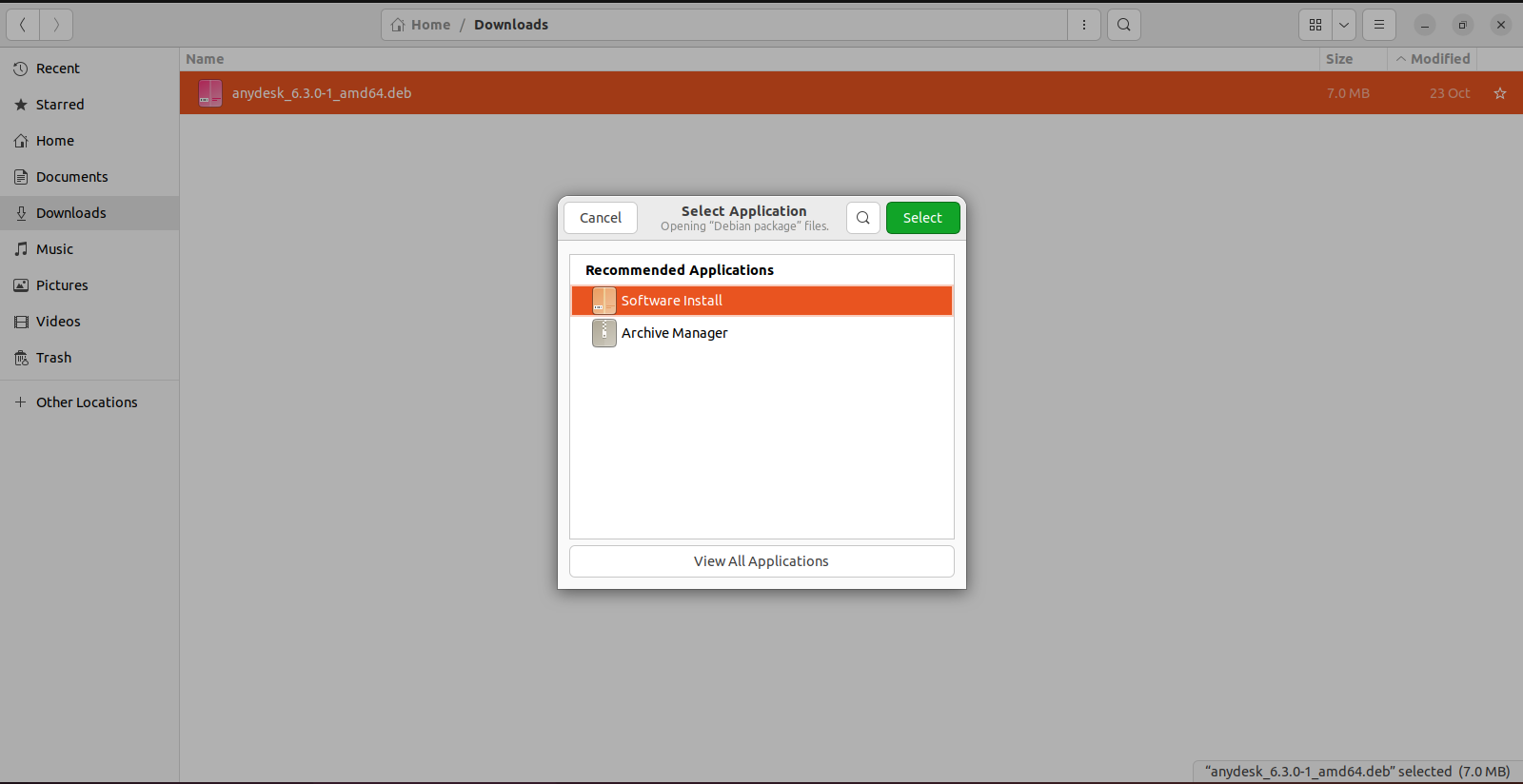
STEP 4 - Now you will see a pop-up window as shown below where you need to press
Installto get started with anydesk installation.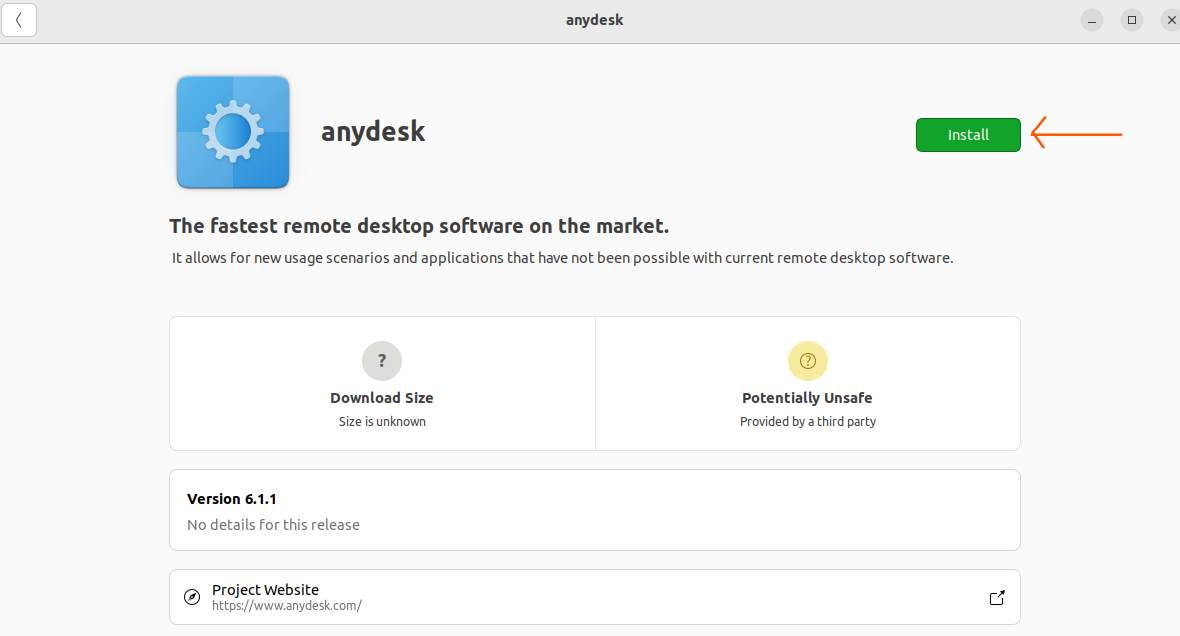
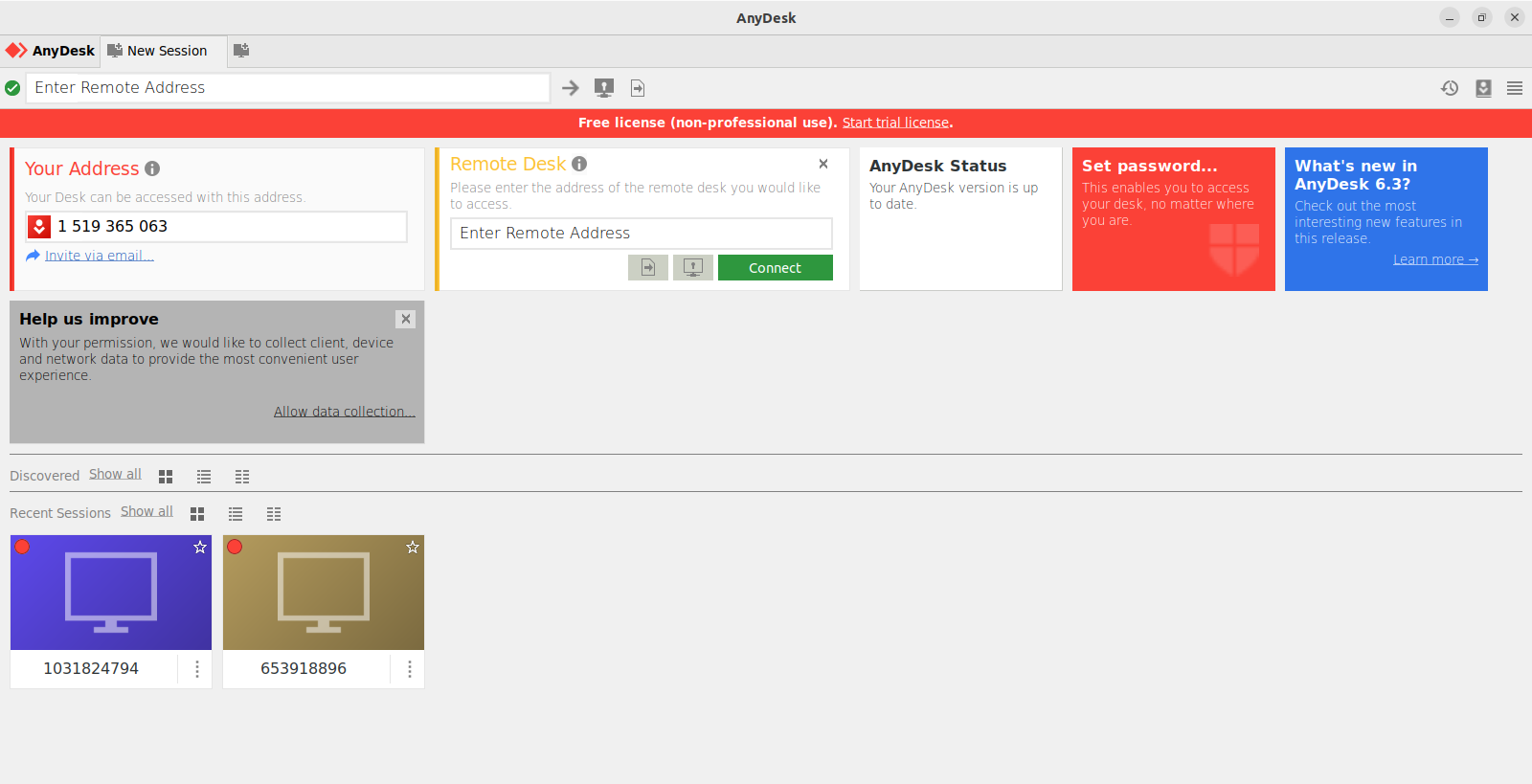
STEP 5 - Checking your installation: Open start menu by searching for
anydeskand click on this icon as shown in the image below.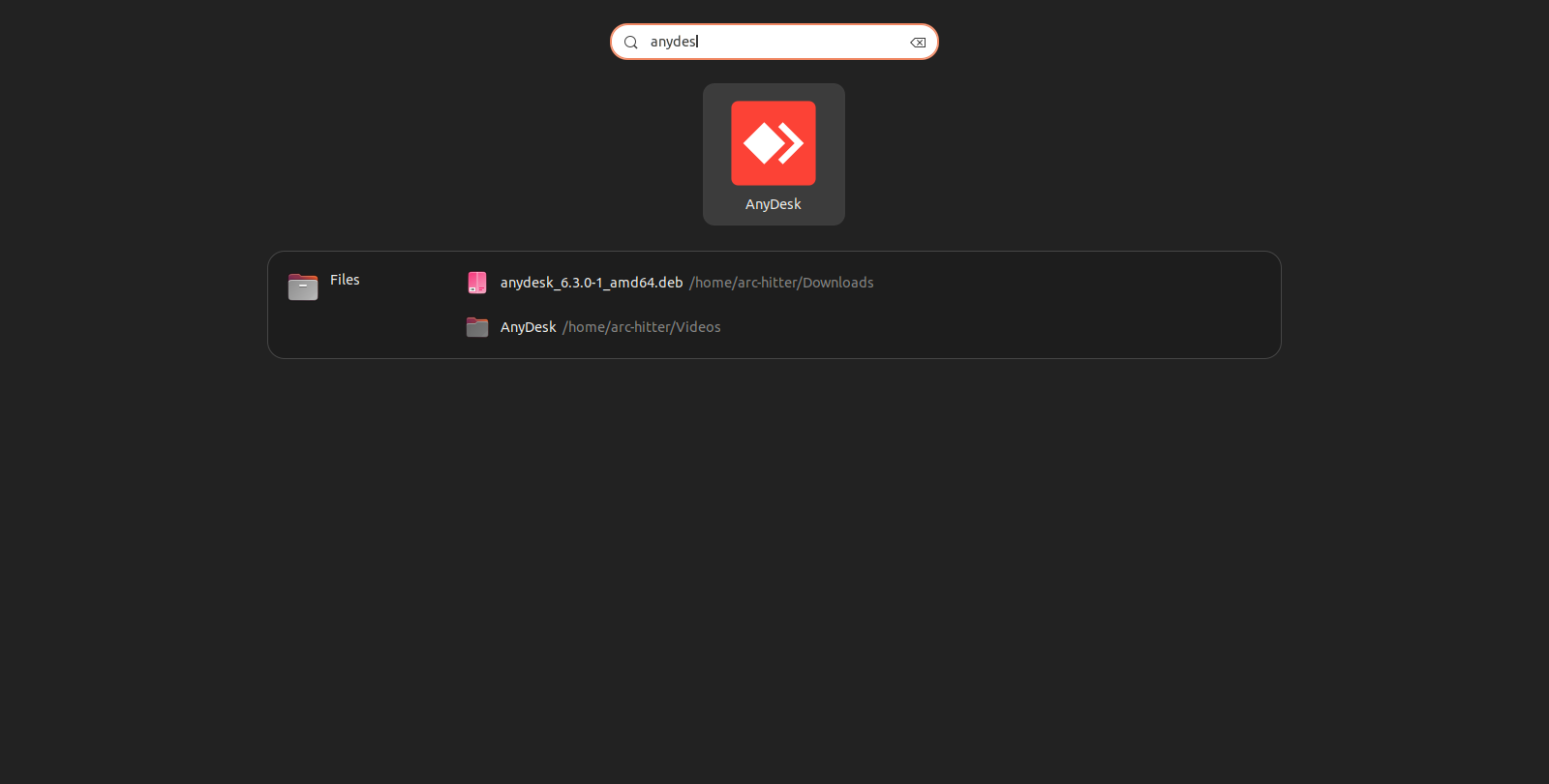
Now you can use this software to get access to remote pc at our end to operate ebot.
2. Using Terminal Method-
STEP 1 & STEP 2 - Follow the same steps as above for gui method to download the installation (debian) file.
STEP 3 - First update and upgrade your system using following commands
sudo apt update
sudo apt upgrade
STEP 4 - Move to the respective directory where the file is downloaded in the terminal and install using
dpkg(Enter your password whenever asked)
# moving to directory where `anydesk_6.3.0-1_amd64.deb` file is present.
# Select your location accordingly
cd ~/Downloads/

# install dpkg (debian package) installer
sudo apt install dpkg

# install anydesk software using debian file
sudo dpkg -i anydesk_6.3.0-1_amd64.deb
STEP 5 - Follow steps similar to gui method to verify installation.